

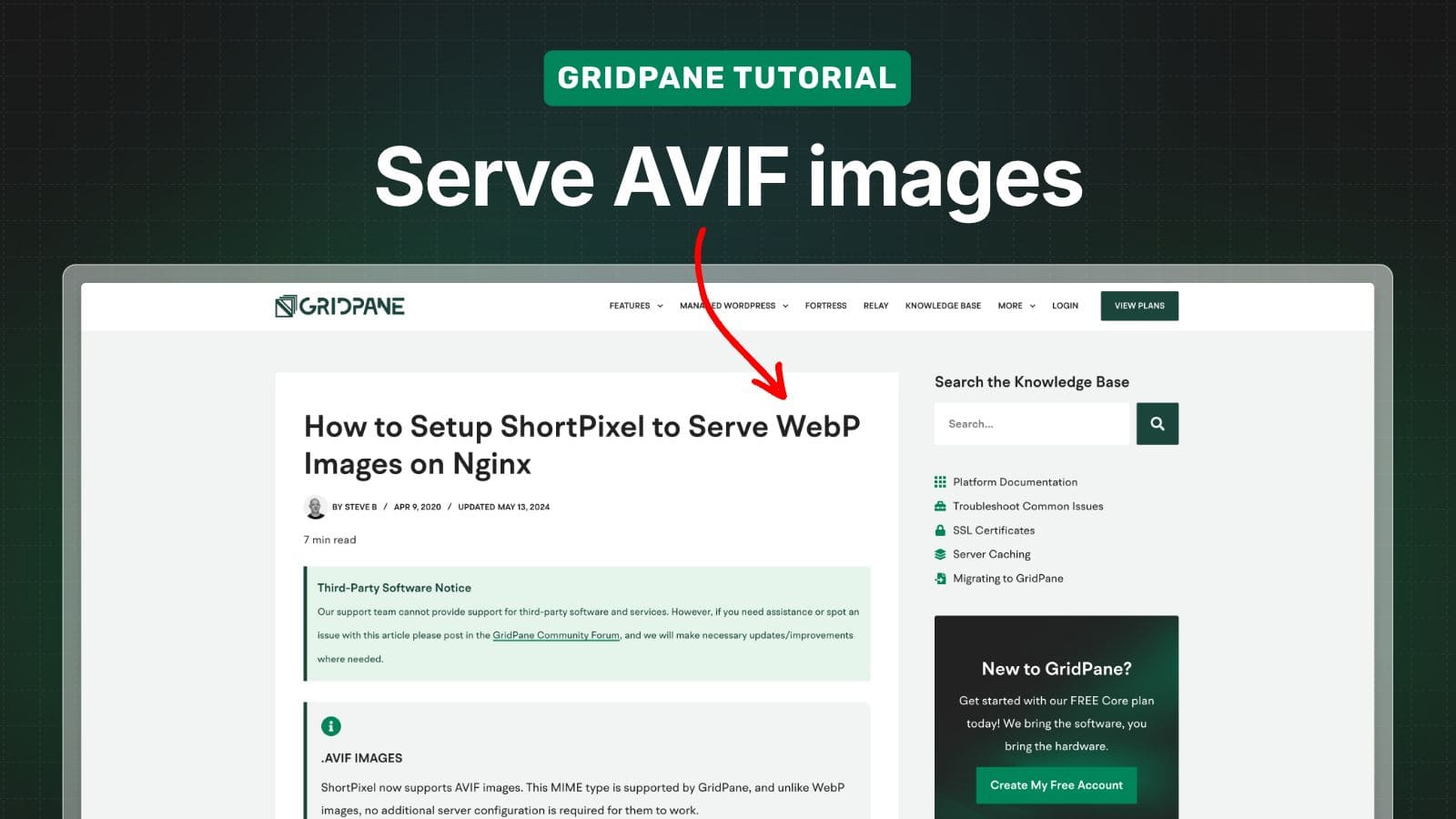
GridPane has an excellent tutorial on how to set up ShortPixel for WebP image optimization – which works perfectly for automatically serving WebP images.
However, their documentation for AVIF suggests:
“Toggle on the create AVIF images setting and Deliver images on the frontend setting. Here it will automatically set things via the Using the tag syntax setting. You can leave the preselected ‘Only via WordPress hooks (like the_content, the_excerpt, etc)’ setting.”
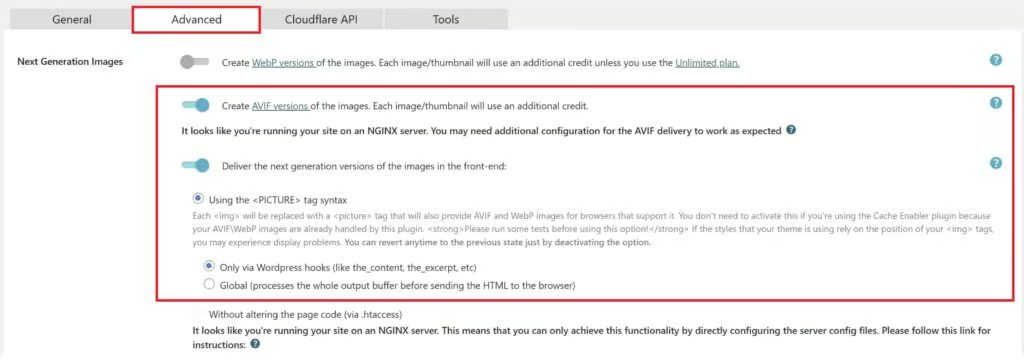
This isn’t ideal if you don’t want ShortPixel inserting <picture> tags throughout your site.
Here’s how to automatically serve AVIF images just like WebP images, without needing to enable that ShortPixel setting.
The Config
We’re going to follow a similar process as the GridPane documentation.
I’m even going to use the same file names in case you’ve already gone through their WebP setup and want to simply tweak the code.
Step 1: SSH into your server
If you’ve never done this before, GridPane has step-by-step instructions in their documentation.
Step 2: Create/edit webp-mappings.conf
Create or edit your existing file with the following command:
nano /etc/nginx/conf.d/webp-mappings.conf
And add this snippet:
map $http_accept $webp_suffix {
    default   "";
    "~*webp"  ".webp";
}
map $http_accept $avif_suffix {
    default   ".no-avif";   # never exists, so image.jpg + suffix can't match the original
    "~*avif"  ".avif";
}
Step 3: Create webp-main-context.conf (server-wide config)
Create the file with the following command:
nano /etc/nginx/extra.d/shortpixel-webp-main-context.conf
And add this snippet:
location ~* ^(/wp-content/.+)\.(png|jpe?g)$ {
    set $base $1;
    set $double_extension $1.$2;
    add_header Vary Accept;

    # AVIF (image.jpg.avif, image.avif) → WebP (image.jpg.webp, image.webp) → original
    try_files $double_extension$avif_suffix $base$avif_suffix
              $double_extension$webp_suffix $base$webp_suffix
              $uri =404;
}
This config will automatically serve AVIF images on compatible browsers, falling back to WebP and then the original image when needed – all without modifying your HTML markup.
Step 4: Verify and Reload
After adding the configuration, be sure to verify your Nginx syntax as usual:
nginx -t
If there are no errors, reload Nginx:
gp ngx reload
That’s all there is to it!
A note on Cloudflare
If your site is proxied through Cloudflare (orange cloud), be aware that Cloudflare ignores the Vary: Accept header unless you’re on Enterprise. The first browser or bot to request an image at each Cloudflare data centre decides which format gets cached, and everyone after that receives the same file.